How to Move Windows Between Monitors on Mac: Shortcuts & Tips
The Multi-Monitor Window Management Challenge
If you work with multiple monitors on your Mac, you’ve experienced this frustration: dragging windows across displays is slow, imprecise, and breaks your workflow. Whether you’re using a MacBook with an external display, an iMac with multiple screens, or a Mac Studio powering a multi-monitor setup, efficient window movement between displays is critical for productivity.
The Reality:
- ❌ No native keyboard shortcuts to move window to other monitor
- ❌ Dragging windows manually is slow and imprecise
- ❌ Mission Control requires multiple steps and mouse precision
- ❌ Windows end up in wrong positions after moving between displays
The solution? Keyboard shortcuts and intelligent window management that macOS should have included. This guide shows you native methods, their limitations, and how professional tools provide instant keyboard shortcuts to move window to other monitor. For a comprehensive overview of keyboard shortcuts, see our Mac keyboard shortcuts guide.
⚡ Quick Summary
macOS has NO keyboard shortcuts to move windows between monitors - you need a professional tool.
MacTiler delivers professional multi-monitor features:
- Shift + ⌥⌘ + arrows - Move windows between monitors instantly
- Per-display layouts - Different layout on each screen
- Swap displays - Exchange all windows with ONE command
- Works with 2-4 monitors seamlessly
$19.99 one-time | 14-day free trial (no credit card)
💡 Or keep reading to understand native methods and their limitations
Quick Navigation
- Native macOS Methods
- Why Keyboard Shortcuts Matter
- Keyboard Shortcut Solutions
- MacTiler Multi-Monitor Features
- Multi-Monitor Workflow Strategies
- Best Practices
- FAQ
Native macOS Methods for Moving Windows Between Monitors
macOS provides basic methods to move window to other monitor, but all require mouse/trackpad - no keyboard shortcuts exist.
| Method | How It Works | Speed | Pros | Cons |
|---|---|---|---|---|
| Drag & Drop | Click title bar → drag across screen edge | Slow | No setup | Imprecise, breaks focus |
| Mission Control | F3 → drag window to other display | Very slow | See all windows | Multiple steps, animations |
| Green Button | Hover green button → “Move to [Display]” | Slow | Simple | Fullscreen only, hides dock |
⚠️ Critical Limitation: macOS provides no native keyboard shortcut to move window to other monitor. All methods require mouse/trackpad, making multi-monitor workflows significantly slower than they should be.
Why Keyboard Shortcuts Matter for Multi-Monitor Setups
Manual Methods:
- Breaks concentration (hand leaves keyboard)
- Imprecise positioning requires adjustment
- Difficult to remember which window is on which display
Keyboard Shortcuts to Move Window to Other Monitor:
- Instant window movement
- Hands stay on keyboard
- Consistent positioning every time
- Easy to build muscle memory
Keyboard Shortcuts for Moving Windows Between Monitors
Since macOS lacks native keyboard shortcuts for multi-monitor window management, third-party tools fill this critical gap.
What to Look For in Multi-Monitor Tools
Essential Features:
- ⌨️ Customizable keyboard shortcuts - Quick window movement between displays
- 🎯 Per-monitor layouts - Different arrangements on each screen
- 🔄 Swap displays - Exchange all windows between monitors instantly
- 👁️ Visual feedback - See where windows will land
- 🪟 Position after move - Control window placement on destination monitor
Comparison: Multi-Monitor Window Management Tools
| Tool | Keyboard Shortcut | Per-Monitor Layouts | Swap Displays | Visual Feedback | Price |
|---|---|---|---|---|---|
| macOS Native | ❌ None | ❌ No | ❌ No | ❌ No | Free |
| Rectangle | ✅ Yes | ❌ No | ❌ No | ❌ No | Free |
| Magnet | ✅ Yes (basic) | ❌ No | ❌ No | ❌ No | $4.99 |
| Moom | ✅ Yes (advanced) | ✅ Yes | ❌ No | ⚠️ Limited | $14.99 |
| MacTiler | ✅ Yes (advanced) | ✅ Yes | ✅ Yes | ✅ Yes | $19.99 |
Third-Party Window Management Solutions
While free tools offer basic keyboard shortcuts to move window to other monitor, professional solutions provide comprehensive multi-monitor features:
Professional Tools Typically Offer:
- Shift ⌥⌘ ← or → - Move active window between monitors instantly
- Swap all windows between displays with one keystroke
- Per-monitor layouts - Different layout on each screen
- Visual preview zones - See exactly where window lands
- Automatic positioning - Window arranges intelligently on destination display
- Works with 2-4 monitors seamlessly
For a detailed comparison of available tools and their multi-monitor capabilities, see our window manager comparison.
Professional Multi-Monitor Features
Professional window management tools like MacTiler offer comprehensive multi-monitor features designed specifically for professionals working with 2-4 displays.
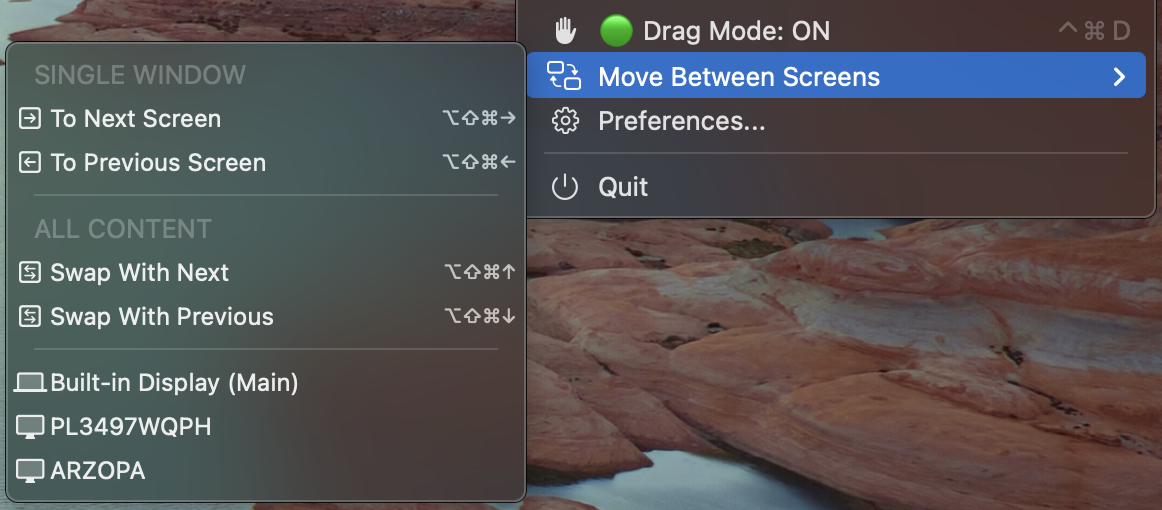
MacTiler's multi-monitor menu: Move windows between screens instantly with keyboard shortcuts. Visit MacTiler multi-monitor page for animated demonstrations
Instant Window Movement
Keyboard Shortcut: Shift + ⌥⌘ + ← →
Instant keyboard shortcut to move window to other monitor:
- Shift + ⌥⌘ + → - Move window to next monitor (right)
- Shift + ⌥⌘ + ← - Move window to previous monitor (left)
- Window automatically positions intelligently on destination display
Swap All Windows Between Displays
Unique MacTiler Feature: Exchange entire workspace between monitors with one command.
Use Case:
- Presenting on projector → Swap main work to external display
- Switching focus between tasks → Move entire workflow to different monitor
- Adjusting to new monitor setup → Quick reorganization
How It Works:
- Trigger swap displays command
- All windows on Monitor 1 → Move to Monitor 2
- All windows on Monitor 2 → Move to Monitor 1
- Window positions preserved and automatically adjusted to each display’s size and proportions
This is particularly useful when presenting - instantly swap your work to the external projector while keeping your notes on your laptop screen, all with correct proportions.
Display-Aware Intelligence
- Automatically adjusts when displays connect/disconnect
- Visual zones adapt to each monitor’s resolution
- Restores window positions when returning to known setup
Multi-Monitor Workflow Strategies
Task-Based Organization:
- 2 monitors: Main (primary work) + Secondary (reference materials)
- 3 monitors: Center (work) + Left (research) + Right (communication)
Common Workflows:
- Coding: IDE on main, docs + browser on secondary. Use Shift + ⌥⌘ + arrows to move windows
- Meetings: Presentation on main, notes on secondary
- Writing: Writing app on main (70%), research + notes on secondary
Dynamic Modes:
- Deep Work: Focus apps on main, communication on secondary
- Collaboration: Swap displays - communication becomes priority
- Presentation: Use swap displays feature to reorganize instantly
💡 Related: For basic window arrangements on a single monitor, see our split screen tutorial.
Multi-Monitor Best Practices
⚙️ Productivity Optimization
- ✅ Use consistent layouts - Same monitor for same task types
- ✅ Learn 3-5 keyboard shortcuts - Focus on most-used movements
- ✅ Create your workflows - Different layouts for different activities
- ✅ Minimize window hunting - Keep windows in predictable locations with layouts
- ✅ Use per-monitor layouts - Maximize each display’s strengths
Frequently Asked Questions
Basic Multi-Monitor Questions
How do I move a window to another monitor on Mac?
Native Methods:
- Drag and drop - Click window title bar, drag to other monitor (slow)
- Green button - Hover on green button → Select “Move to [Display]” (fullscreen only)
- Mission Control - Open Mission Control → Drag window to other display
Keyboard Shortcut Method:
- MacTiler: Shift + ⌥⌘ + ← → (instant, intelligent positioning)
For a comparison of available tools, see our window manager comparison.
Is there a hotkey to move window to other monitor?
macOS does not include a native hotkey to move windows between monitors. You need a third-party window manager.
MacTiler provides comprehensive multi-monitor shortcuts:
- Shift + ⌥⌘ + ← → - Move window between monitors instantly
- Intelligent positioning on destination display
- Works seamlessly with 2-4 monitors
- Swap all windows between displays with one command
Free alternatives like Rectangle offer basic functionality but lack per-monitor layouts and swap displays.
What is the keyboard shortcut to move window to another screen?
There is no native macOS keyboard shortcut to move windows between screens. Third-party tools add this functionality:
MacTiler Shortcuts:
- Shift + ⌥⌘ + → - Move window to next monitor
- Shift + ⌥⌘ + ← - Move window to previous monitor
- Swap displays - Exchange all windows between monitors
Most tools allow customizing shortcuts. Practice for 1-2 weeks until muscle memory develops.
Multi-Monitor Setup Questions
How do I manage multiple monitors on Mac efficiently?
Best Practices for Multi-Monitor Management:
Use keyboard shortcuts for window movement
- Eliminates slow dragging between displays
- Maintains keyboard focus for productivity
Create consistent layouts
- Dedicate each monitor to specific task types
- Use per-monitor layout presets (MacTiler feature)
Leverage window management tools
- Basic: Split-view (free) for simple window movement
- Professional: MacTiler for advanced multi-monitor features
Configure display arrangement
- System Preferences → Displays → Arrangement
- Position displays to match physical setup
Use workflow-specific setups
- Coding layout vs meeting layout vs writing layout
- Switch between setups with keyboard shortcuts
Can I swap all windows between two monitors quickly?
macOS Native: No built-in feature to swap windows between monitors.
Third-Party Solutions:
MacTiler (Recommended):
- Swap Displays feature exchanges all windows between monitors
- One keyboard shortcut swaps entire workspace
- Maintains window positions and layouts
- Essential for:
- Presentations (swap to projector)
- Focus switching (move all work to different monitor)
- Dynamic workspace reorganization
Alternative Approach:
- Manual: Move windows one-by-one
- Saved layouts: Restore different configurations (requires setup)
Do I need separate layouts for each monitor?
Short answer: Not required, but highly recommended for productivity.
Benefits of Per-Monitor Layouts:
Maximize each display’s strengths
- Wider monitor → 3-column layout
- Vertical monitor → Stacked layout
- Laptop screen → Communication tools
Consistent workflow setups
- Press one shortcut → All monitors arrange perfectly
- Save different configurations for different activities
- Quick switching between work modes
Reduced decision fatigue
- Each monitor has predictable purpose
- Windows always in expected locations
- Faster task switching
Per-Monitor Layout Support: MacTiler provides built-in presets that work immediately. Most free tools don’t support per-monitor layouts.
Recommended Approach:
- Start with 2-3 multi-monitor layouts
- Test for 1-2 weeks
- Refine based on actual workflow patterns
Tool-Specific Questions
What's the best tool for multi-monitor window management on Mac?
For professional multi-monitor workflows, MacTiler offers the most comprehensive solution:
- Instant window movement (Shift + ⌥⌘ + arrows)
- Per-monitor layouts with presets
- Swap displays feature (unique to MacTiler)
- Visual feedback before moving
- 2-4 monitor support
Best for: Professionals with dual/triple monitor setups who need efficiency.
Free alternatives exist but lack per-monitor layouts, visual feedback, and swap displays features.
Does MacTiler work with 3 or 4 monitors?
Yes! MacTiler supports 2-4 monitors seamlessly.
Multi-Monitor Features:
2-4 Monitor Support:
- Shift + ⌥⌘ + arrows cycles through all connected displays
- Each monitor can have independent layouts
- Visual snap zones adapt to each display’s resolution
Example: 3-Monitor Setup
- Monitor 1 (center): Main work, 3-column layout (⌥⌘5)
- Monitor 2 (left): Browser + docs, vertical split (⌥⌘1)
- Monitor 3 (right): Communication, asymmetric layout (⌥⌘3)
4-Monitor Professional Setup:
- Different layout preset per monitor
- Quick window movement between any displays
- Monitor configuration memory (remembers your setup)
Display Detection:
- Automatically detects all connected monitors
- Adjusts keyboard shortcuts for monitor count
- Handles hot-plugging (connecting/disconnecting displays)
Perfect for:
- Trading desks (4+ monitors)
- Video editing stations (3 monitors)
- Development environments (2-3 monitors)
Conclusion: Transform Your Multi-Monitor Workflow
🎯 Bottom Line: Moving windows between monitors should be instant, not a time consuming manual process. Keyboard shortcuts save hours per year.
Why Multi-Monitor Window Management Matters
The Problem: macOS lacks native keyboard shortcuts for moving windows between monitors. Manual dragging is slow, breaks concentration, and wastes valuable time for professionals with multi-display setups.
The Solution: Window management tools add keyboard shortcuts and intelligent multi-monitor features:
- Instant window movement - Shift + ⌥⌘ + arrows to move window to other monitor
- Per-monitor layouts - Different arrangements on each display
- Swap displays - Exchange entire workspace between monitors
- Visual feedback - See where windows land before moving
- Display intelligence - Remembers configurations, adapts to changes
Tool Recommendations by Use Case
Basic Dual Monitor (Budget: $0):
- Split-view - for simple monitor setups
- Missing: Per-monitor layouts, visual feedback, swap displays
Professional Multi-Monitor (2-4 Displays):
- MacTiler ($19.99, 14-day free trial) - Comprehensive multi-monitor solution
- Perfect for: Developers, designers, traders, content creators
- Features: Advanced shortcuts, per-monitor layouts, swap displays, visual zones
- No credit card required for trial
- Get MacTiler →
Related Guides
- How to Split Screen on Mac
- Mac Keyboard Shortcuts
- Full Screen Shortcuts
- Best Mac Window Manager Comparison
Get Started
Ready for professional multi-monitor control? Get MacTiler - $19.99 one-time, 14-day free trial, no credit card required. Comprehensive keyboard shortcuts, per-display layouts, and instant window movement.
Last updated: November 2025